Case Study
MERALCO Maintenance Schedule Automation
Designed and developed an end-to-end automation that transformed Outlook maintenance advisory emails into published Drupal CMS pages, reducing repetitive work for the Web Development team.
01 The Problem
Every week, the Corporate Communications Group (CCG) receives approximately 30–40 scheduled maintenance advisories from Meralco. Each advisory must be manually processed, formatted, published to the company website, and tracked in Excel before stakeholders are notified. As the volume increased, the repetitive workflow became time-consuming and prone to formatting and data-entry errors.
Why Automation Was Needed
| Business Challenge | Impact |
|---|---|
| 30–40 maintenance advisories every week | High repetitive workload |
| Manual HTML formatting | Inconsistent formatting |
| Multiple systems (Outlook, Excel, Drupal CMS) | Frequent context switching |
| Manual tracking and URL logging | Additional administrative work |
Solution Overview
To streamline this recurring workflow, I designed an automation that combines Microsoft Power Automate for email processing and UiPath for CMS automation. The solution transforms incoming maintenance advisories into structured data, publishes them to Drupal, records the published URL and timestamp, and prepares the information for stakeholder confirmation.
02 Workflow Overview
03 Technologies
04 Power Automate
How it actually works, step by step.
Purpose: Prepare and structure the data
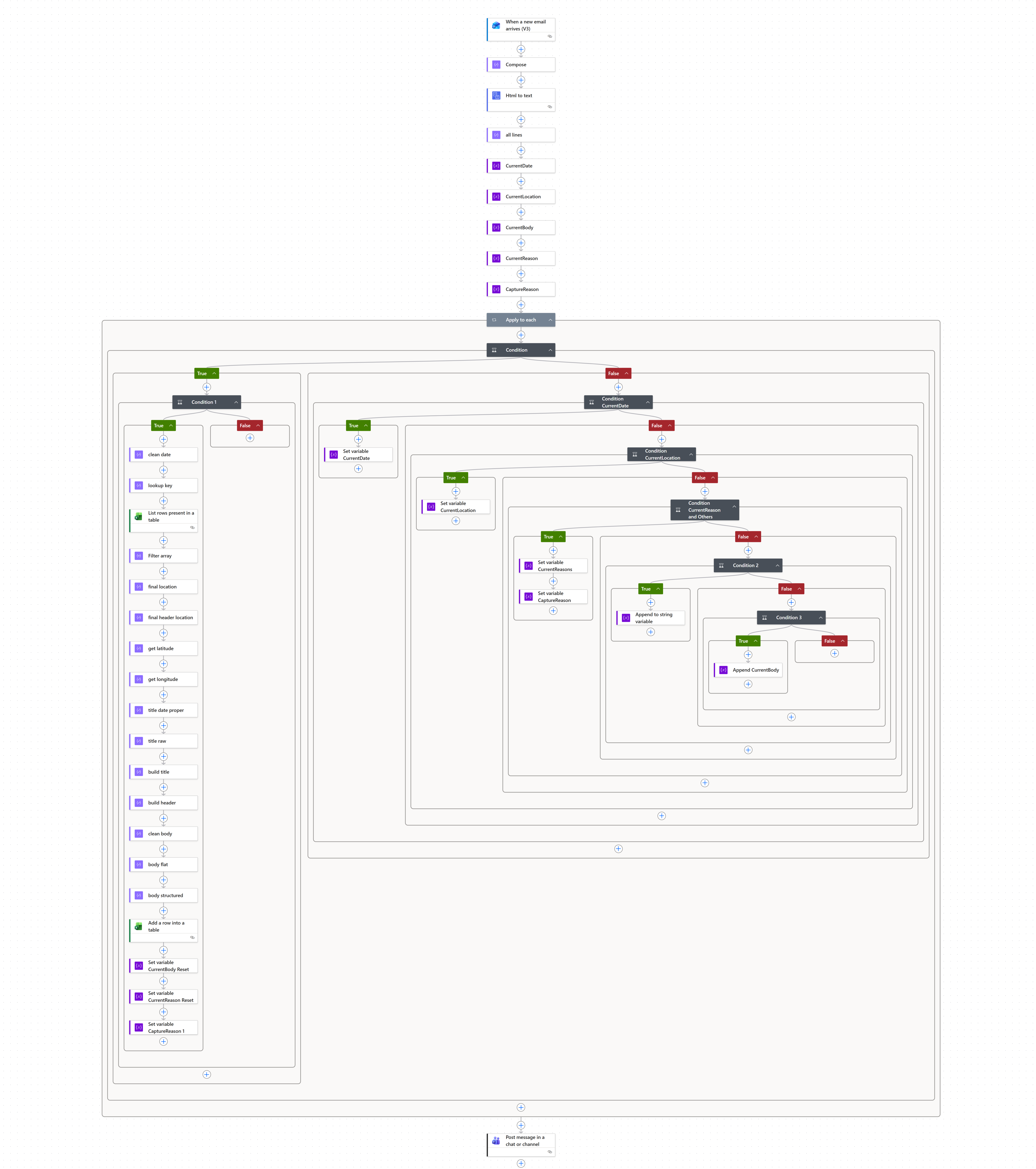
Power Automate handled everything related to processing the incoming maintenance advisory email before it reached the CMS.
Responsibilities
- Monitored Outlook for new maintenance advisory emails.
- Extracted the title, body, location, and reason from the email.
- Cleaned and standardized the content by:
- Removing unnecessary text (e.g., "ADDITIONAL" and Request IDs)
- Normalizing titles and dates
- Cleaning line breaks and extra spaces
- Extracting only the actual reason
- Mapped locations using a lookup table (e.g., Quezon City vs Quezon Province).
- Generated a structured Excel record containing all required information for publishing.
1Email Processing
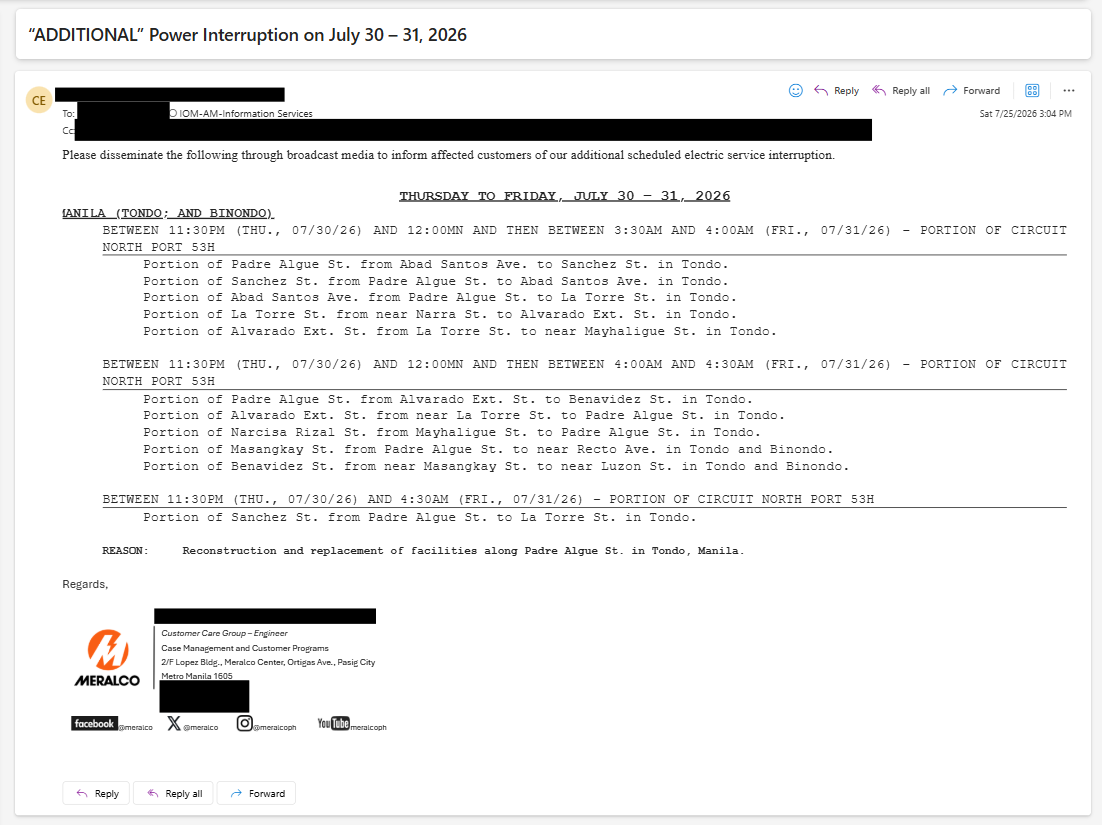
Automatically detects incoming maintenance advisories and begins processing without manual intervention.
2Power Automate detects it
The flow triggers on the incoming email, then cleans and structures the data.
Click to zoom · scroll to magnify · drag to pan
3Excel
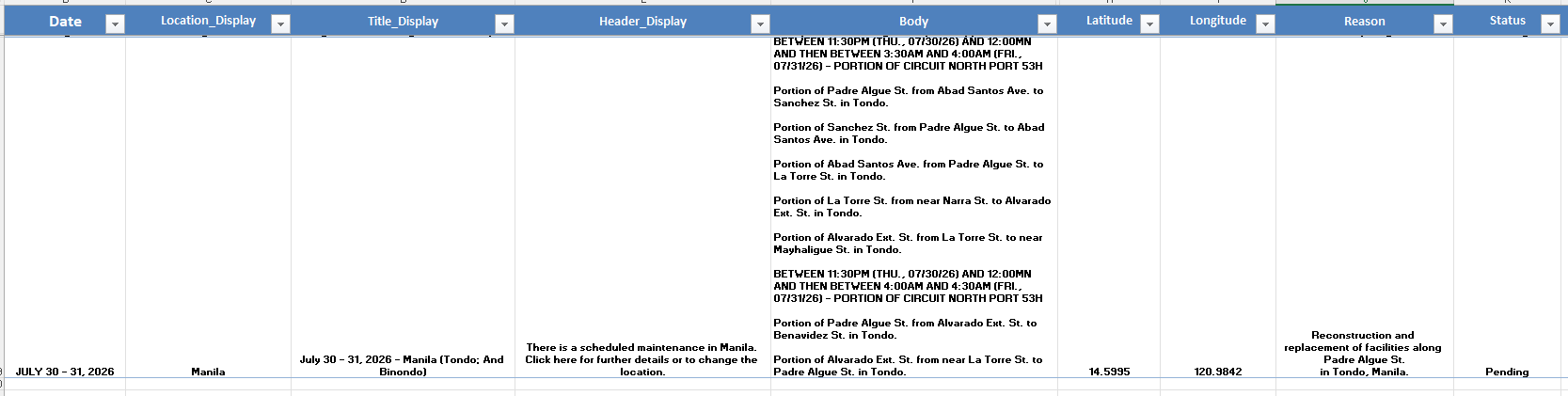
Columns include:
- Title
- Location
- Body
- Reason
- Status
4Demo
Power Automate processing an incoming advisory and writing it to Excel.
05 UiPath
The full sequence, structured directly from the real project file.
Purpose: Publish the content to Drupal CMS
UiPath used the structured Excel data produced by Power Automate to automate the website publishing process.
Responsibilities
- Read pending records from Excel.
- Converted the cleaned body into valid HTML.
- Automatically populated the Drupal CMS fields:
- Title
- Header
- Body
- Reason
- Selected the correct maintenance location.
- Configured Domain Access settings.
- Published the maintenance advisory.
- Captured the published URL.
- Updated Excel with:
- Posting status
- Created timestamp
- Published URL
Complete sequence
Every activity in order, with If/Then/Else branches shown as they're actually built.
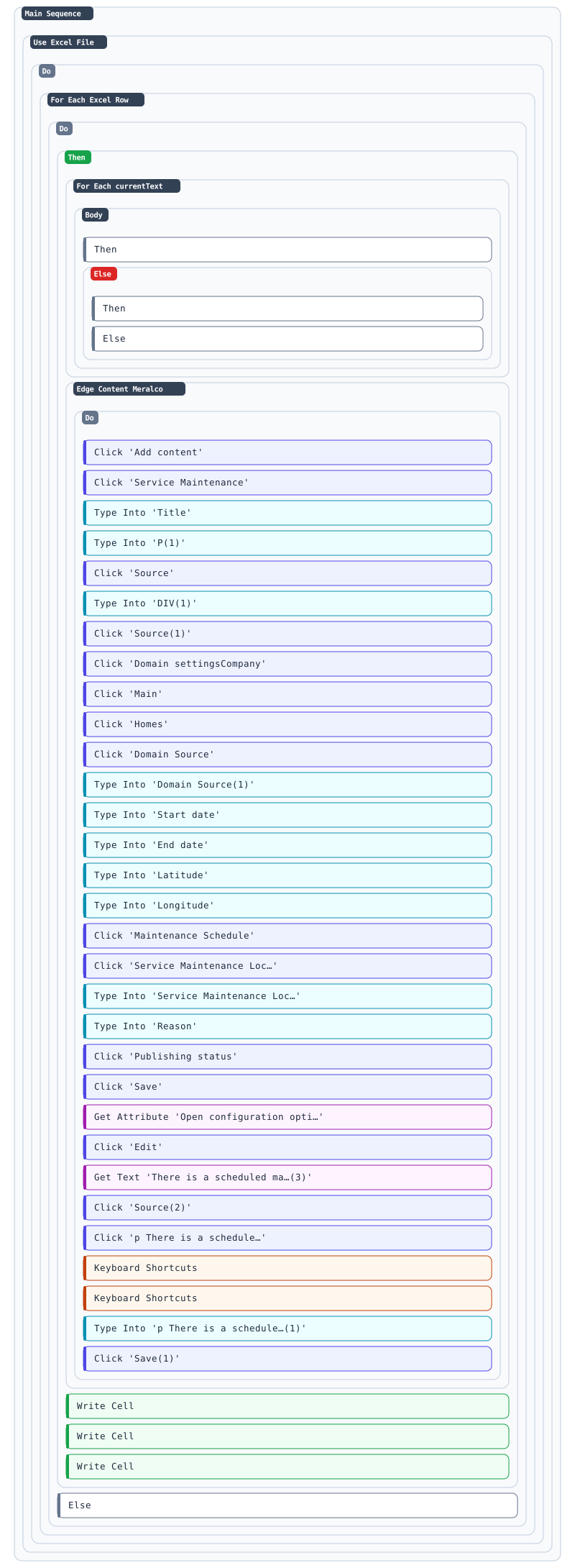
Click to zoom · scroll to magnify · drag to pan
What this flow does
- Use Excel File → For Each Excel Row — opens the tracking sheet Power Automate wrote to and loops through every unposted advisory.
- For Each currentText (Then/Else) — walks through the body line by line, branching on whether a line starts a new "BETWEEN…" section, to decide where bold headers and paragraph breaks go.
- Edge Content Meralco → Do — opens Drupal in Edge and runs the actual CMS automation: clicks "Add content," fills Title, switches the body editor to Source mode and types the generated HTML, sets Domain access (Company / Main / Homes), fills Start/End date, Latitude/Longitude, picks the Service Maintenance Location, fills Reason, sets Publishing status, and saves.
- Get Attribute → Edit → Get Text → Source → Save — reopens the saved post to patch the "click here for further details" snippet with the correct in-page link, since that element isn't editable in the same pass.
- Write Cell ×3 — writes the published URL, status, and timestamp back into the Excel tracking sheet.
The result
The advisory, live on the public Meralco website after UiPath publishes it.
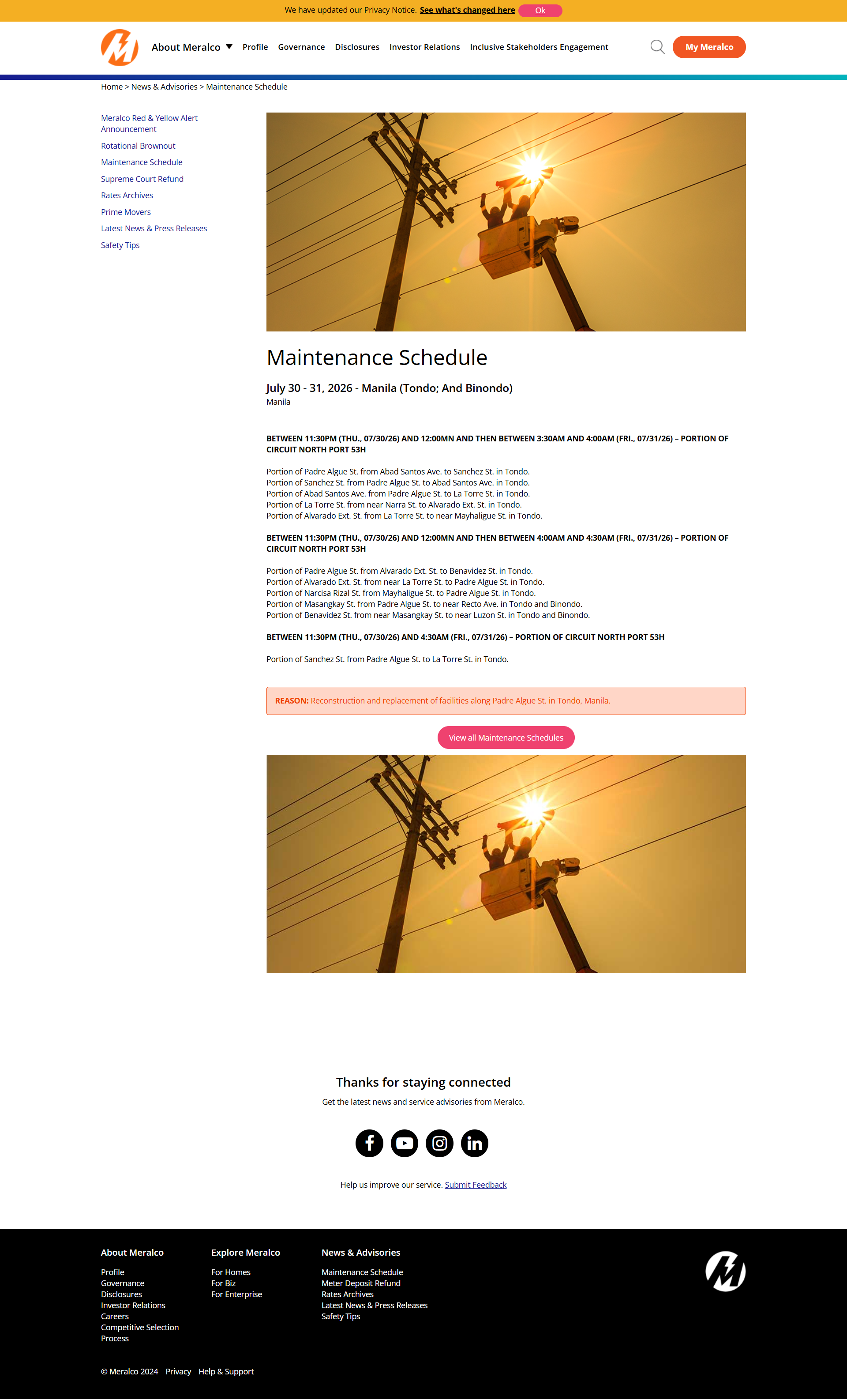
Click to zoom · scroll to magnify · drag to pan
Demo
UiPath populating the CMS and publishing the advisory.
06 Why Use Both?
Rather than building the entire workflow in a single platform, I split the automation between Power Automate and UiPath based on the strengths of each tool.
Power Automate handles the data preparation stage. It monitors Outlook for new maintenance advisories, extracts the required information, cleans and standardizes the content, and stores the structured data in Excel. Since the workflow starts with Microsoft 365 services, Power Automate provided a straightforward way to manage email processing and data transformation.
UiPath takes over once the data is ready. It reads the structured Excel data, interacts with the Drupal CMS, generates the required HTML, fills in the content fields, configures publishing settings, publishes the advisory, captures the published URL, and updates the tracking sheet.
By separating these responsibilities, each tool focuses on what it does best. This made the automation easier to maintain, simpler to troubleshoot, and more reliable than trying to handle the entire workflow in a single automation.
| Power Automate | UiPath |
|---|---|
| Monitor Outlook | Read Excel |
| Extract email content | Generate HTML |
| Clean and standardize data | Populate Drupal CMS |
| Detect locations | Configure publishing settings |
| Store structured records in Excel | Publish advisory |
| Prepare data for automation | Capture URL and update tracking |
Power Automate
- Monitor Outlook
- Extract email content
- Clean and standardize data
- Detect locations
- Store structured records in Excel
- Prepare data for automation
UiPath
- Read Excel
- Generate HTML
- Populate Drupal CMS
- Configure publishing settings
- Publish advisory
- Capture URL and update tracking
Design Decision: Instead of relying on one platform for everything, I used each tool where it was most effective. This resulted in a cleaner architecture, reduced maintenance effort, and a more reliable end-to-end automation.
07 Challenges
The engineering problems, not just the technology list.
Each maintenance advisory email had a different structure. Some advisories contained multiple maintenance windows, while others had inconsistent line breaks, extra spaces, or paragraphs split across several lines. This made it difficult to publish the content directly to the CMS.
I used Power Automate to clean and normalize the email content before passing it to UiPath. UiPath then converted the cleaned text into valid HTML, automatically applying paragraph breaks and bold formatting for maintenance schedule headers.
Some locations had similar names, such as Quezon City and Quezon Province. Using partial text matching caused the automation to select the wrong location in the CMS.
I implemented an exact location lookup in Power Automate using a predefined list of service locations. This ensured the correct value was written to Excel and consistently selected by UiPath.
The CMS required HTML input, but the email body was plain text. Advisories also varied in structure, with some containing multiple BETWEEN sections or headings such as THE WHOLE OF CIRCUIT.
Instead of manually formatting each advisory, I built a dynamic HTML generator in UiPath that:
- Detects maintenance schedule headings.
- Wraps headings in <strong> tags.
- Inserts paragraph breaks automatically.
- Handles multiple maintenance windows within the same advisory.
The Drupal rich text editor was unreliable when automating formatted text. Pasting directly into the editor often resulted in broken formatting or inconsistent output.
Rather than interacting with the visual editor, the automation switches to Source Mode and inserts the generated HTML directly. This approach ensures consistent formatting regardless of the advisory content.
After publishing, the Web Development team still needed to manually copy the published URL, record the posting timestamp, and update the tracking spreadsheet.
UiPath automatically captures the published URL after posting, records the creation timestamp, updates the Excel tracker, and marks the advisory as Posted, eliminating additional administrative work.
08 Results
| Metric | Before | After |
|---|---|---|
| Weekly Posting Time | 1–2 hours | Under 15 minutes |
| Posting Process | Manual | One-click automation |
| HTML Formatting | Manual | Automatic |
| Tracking | Manual | Automatic |
| URL Logging | Manual | Automatic |
| Confirmation Preparation | Manual | Ready immediately after posting |
Timing reflects posting the full weekly batch of 30–40 maintenance advisories.
Before
- Every week, we manually processed 30–40 maintenance schedules — around 1–2 hours of work
- Required repetitive copy-and-paste across multiple systems
- Manual formatting and tracking
After
- The same 30–40 schedules now post in under 15 minutes
- Automatic HTML formatting and location selection
- Automatic timestamp and published URL logging
- Consistent output across all maintenance advisories
09 Reflection
This project changed how I think about automation. At the beginning, I assumed the biggest challenge would be automating the Drupal CMS. Instead, I discovered that the real challenge was preparing clean, consistent data from emails that didn't always follow the same format. Small differences in formatting, multiple maintenance windows, and ambiguous location names could easily cause the automation to fail if they weren't handled properly.
One of the biggest lessons I learned was the importance of separating responsibilities. I initially tried to build everything into a single automation, but it quickly became difficult to maintain and troubleshoot. Splitting the workflow between Power Automate for email processing and data preparation, and UiPath for browser automation and CMS publishing, made the solution more reliable, easier to debug, and much more maintainable.
More importantly, this project reminded me that automation isn't just about reducing clicks or saving time. It's about improving the way a team works. By automating a repetitive publishing process that handled around 30–40 maintenance advisories each week, our Web Development team no longer has to spend valuable time copying content, fixing formatting, and updating tracking sheets. Instead, we can focus on development work, quality assurance, and delivering a more consistent publishing process.
Looking back, this project gave me a deeper appreciation for designing automation around business workflows rather than individual tasks. Building something that genuinely improves how a team operates has been one of the most rewarding experiences of my career so far.